How to turn data from Google Analytics into charts as you browse
The web is abundant with data, but extracting and visualizing it remains one of the biggest frustrations for analysts, marketers, and business professionals. Whether you're analyzing marketing performance, tracking user engagement, monitoring sales trends, or conducting competitive research, getting data out of Google Analytics and transforming it into actionable charts, KPIs, and insights typically involves a tedious, multi-step process.
You find yourself stuck staring at HTML tables hoping for pre-made charts that never quite answer your questions, manually copying and pasting data into spreadsheets row by row, cleaning up formatting inconsistencies, and then struggling to create visualizations that actually communicate insights effectively.
The Universal Web Data Extraction Problem
Before we dive into Google Analytics specifically, let's acknowledge a broader truth: most valuable data lives on websites, not in downloadable files.
The traditional workflow for web data analysis is broken:
- Manual Copy-Paste: Select table cells, copy, switch to Excel, paste, repeat hundreds of times
- Format Cleanup: Fix broken columns, remove HTML artifacts, standardize data types
- Data Verification: Check for missing rows, duplicated entries, and copying errors
- Chart Creation: Finally start building visualizations after spending 30+ minutes on prep
- Update Hell: When the data changes tomorrow, repeat the entire process
This workflow is:
- Time-consuming: 30-60 minutes of manual work per dataset
- Error-prone: Easy to miss rows, copy wrong columns, or introduce formatting errors
- Non-reproducible: Can't easily re-run the analysis when data updates
- Soul-crushing: Nobody got into data analysis to copy-paste tables all day
The Specific Challenge with Google Analytics
Google Analytics provides a wealth of valuable data, but it comes with its own set of unique challenges that make analysis particularly frustrating:
Data Access and Structure Issues
- Complex Data Structures: Information is often spread across multiple tables, tabs, nested views, and pagination that are difficult to parse systematically
- Dynamic Content: Data loads asynchronously via JavaScript, meaning it doesn't exist in the HTML source and can't be scraped by traditional tools
- Inconsistent Formatting: The same metric can appear in different formats depending on the view, time period, or user settings
- Access Restrictions: Some data requires authentication, specific permissions, or interactive filtering that breaks automated extraction tools
- Rate Limiting: Programmatic access via APIs is often restricted, throttled, or requires expensive enterprise plans
Specific Pain Points We've Identified
Based on extensive research with Google Analytics users, we've identified that complex data extraction, manual report building and pre-configured dashboards.
This creates a frustrating paradox: the data you need is visible on your screen, but locked away from analysis tools.
Why Built-in Tools Fall Short
While Google Analytics includes user metrics, session data, traffic sources data, the platform's native visualization capabilities are often:
- Limited in Scope: Pre-built charts show only standard views, not custom analysis
- Not Customizable: Can't adjust colors, combine metrics, or create custom calculations easily
- Export Restricted: Downloaded reports are static PDFs or limited CSV extracts
- No Cross-Platform Analysis: Can't easily combine Google Analytics data with other sources
- Not Presentation-Ready: Charts lack polish and require significant reformatting
The "Why Not Just Build It?" Question
When we first encountered this problem, the obvious question was: why doesn't someone just build a solution?
It turns out, there are fundamental technical challenges:
The API Limitation
Most platforms' public APIs provide limited data access compared to what's visible in the UI. Getting comprehensive data requires enterprise API access that costs thousands per month—if it's available at all.
The Scraping Problem
Traditional web scraping breaks easily because:
- Websites change their HTML structure frequently
- Dynamic JavaScript rendering makes content invisible to simple scrapers
- Authentication and session management is complex
- Rate limiting and bot detection block automated tools
- Legal and ethical concerns about aggressive scraping
The Browser Extension Advantage
This is why we built Datastripes Lens as a browser extension rather than a traditional web service. Extensions have unique capabilities:
- Access to fully-rendered page content (after JavaScript execution)
- Ability to interact with authenticated sessions (you're already logged in)
- Can extract data the exact same way you see it
- No server-side scraping infrastructure needed
- Works across any website, not just specific platforms
The fundamental insight: if you can see the data in your browser, you should be able to analyze it.

Introducing Datastripes Lens: Visual Analysis While You Browse
Since data is everywhere on the web, we built Datastripes Lens—a powerful browser extension that fundamentally changes how you interact with web data.
Instead of extracting data from the web to an analysis tool, Datastripes Lens brings the analysis tool to the data on the web.
The Core Philosophy
Work where the data is, not where it needs to be exported to.
Datastripes Lens allows you to extract and visualize data from any web page, including Google Analytics, without the traditional workflow friction. The goal is to let you create charts, calculate KPIs, and generate insights on the fly—without leaving your browser, writing any code, or performing manual data cleanup.
How It Works with Google Analytics
You know how Google Analytics data is made up of user metrics, session data, traffic sources. With Datastripes Lens, you can easily turn this data into meaningful visualizations that help you quickly visualize user behavior trends and traffic patterns.
The process is intentionally simple:
1. Install the Extension (One Time) Add Datastripes Lens to your browser (Chrome, Edge, Firefox, or Brave). It's a lightweight extension that lives in your browser toolbar, using minimal resources and only activating when you explicitly use it.
2. Navigate to Google Analytics Go to the specific page in Google Analytics that contains the data you want to analyze. It could be:
- A dashboard with key metrics
- A report table with performance data
- A data export page
- Any page containing structured user metrics, session data, traffic sources
3. Activate Lens Click the Datastripes Lens icon in your browser toolbar. The extension intelligently scans the current page, identifying all tables, charts, and structured data it can extract.
4. Select Your Data Datastripes Lens highlights all extractable data on the page. Simply click on the table or chart you want to analyze. The extension:
- Automatically detects column headers and data types
- Handles merged cells and complex table structures
- Recognizes numeric values, dates, percentages, and currencies
- Preserves relationships between related data
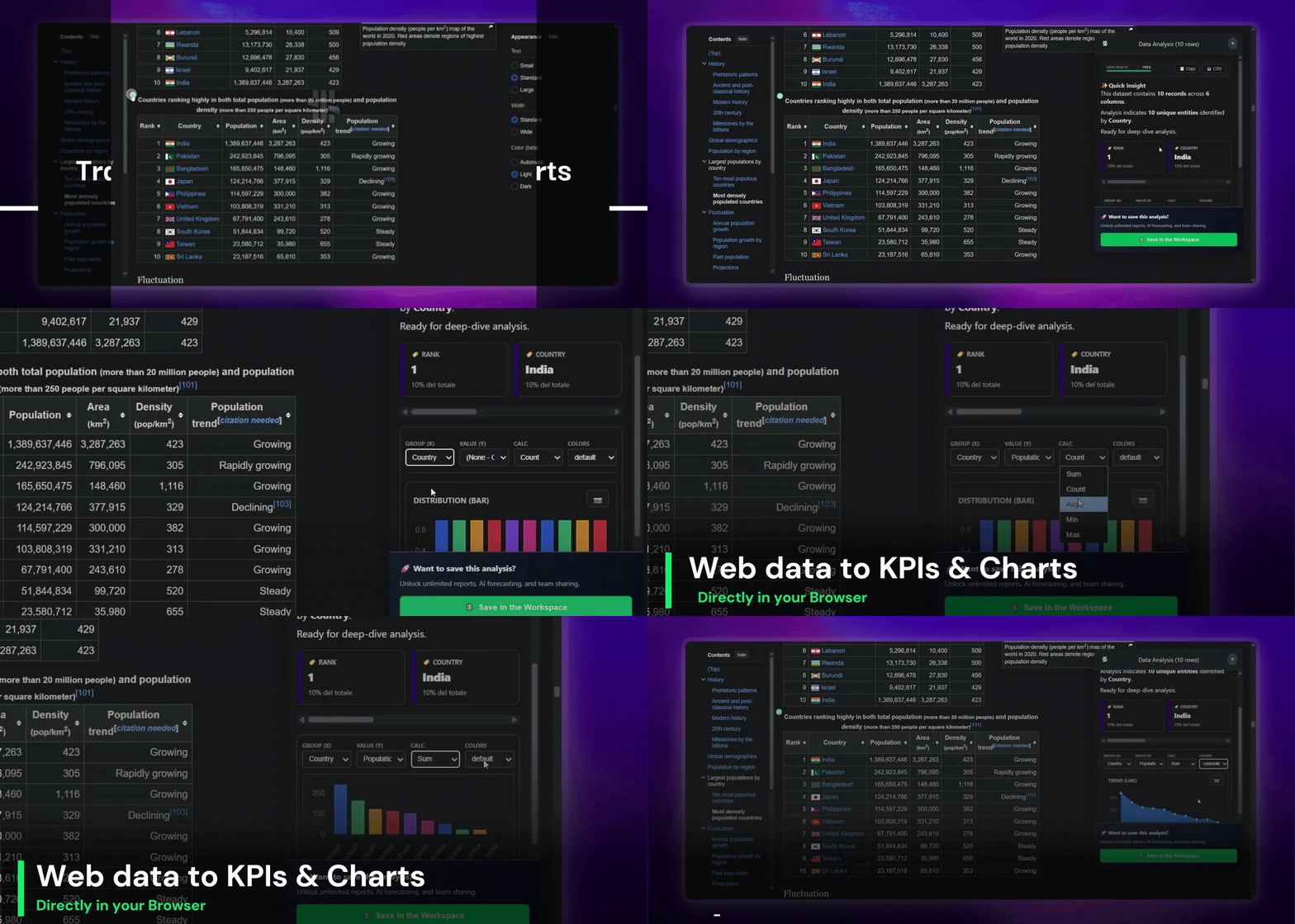
5. Instant Visualization Panel A side panel appears (without leaving the Google Analytics page) showing:
- Data Preview: See the extracted data in a clean, formatted table
- Quick Stats: Automatic calculations of sums, averages, min/max, counts
- Chart Library: 100+ visualization types to choose from
- Smart Suggestions: AI-powered recommendations for the best chart type based on your data structure
6. Create and Customize Choose from professional visualization options:
- Bar and column charts for comparisons
- Line charts for trends over time
- Pie and donut charts for proportions
- Scatter plots for correlations
- Heatmaps for pattern analysis
- Advanced charts like Sankey diagrams, treemaps, and network graphs
Each chart is fully customizable:
- Adjust colors and themes
- Add titles and labels
- Configure tooltips
- Apply filters and groupings
- Create calculated fields
7. Zero Flow Interruption Everything happens without leaving the Google Analytics webpage. You can:
- Continue navigating Google Analytics while analyzing data
- Extract data from multiple tabs or views
- Combine data from different pages
- Keep your authentication and session active
Advanced Features
Multi-Source Combining Extract data from multiple tables on the same page or different pages, then combine them into a unified analysis. For example, pull user metrics from one Google Analytics view and engagement data from another, then visualize them together.
Automatic Updates Refresh the data extraction with one click as Google Analytics data updates. No need to rebuild your analysis from scratch.
Template Workflows Save your extraction and visualization settings as a template. Next time you visit Google Analytics, apply the template with one click to recreate the analysis instantly.
Export Options Once you've created your visualization:
- Export as high-resolution PNG or SVG images
- Download the underlying data as CSV or Excel
- Share an interactive link with colleagues
- Embed in presentations or reports
- Send to the full Datastripes platform for deeper analysis
Real-World Benefits for Google Analytics Users
We've extensively tested Datastripes Lens with real Google Analytics users across different roles and industries. Here's what we've learned about how it transforms workflows:
Proven Use Cases and Results
We've already turned hundreds of "datasets" from Google Analytics into actionable charts and KPIs using Datastripes Lens. For example, we've helped users quickly visualize user behavior trends and traffic patterns in a fraction of the time it would take with traditional methods.
Who Benefits Most
- Marketing Teams: Analyze campaign performance by visualizing traffic sources and user engagement metrics.
- Product Managers: Track user behavior to inform product decisions and feature prioritization.
- Business Analysts: Generate quick reports on website performance without leaving the GA interface.
Specific Workflow Improvements
Before Datastripes Lens:
- 30-45 minutes to manually copy-paste data from Google Analytics
- Another 15-20 minutes cleaning and formatting in Excel
- 10-15 minutes creating basic charts
- Total: ~60 minutes per analysis
- Major pain point: Impossible to reproduce quickly when data updates
After Datastripes Lens:
- 2 minutes to extract data and create initial visualizations
- 3-5 minutes to customize and refine charts
- Total: ~5-7 minutes per analysis
- Major benefit: One-click refresh when data updates
Time savings: ~85-90% reduction in analysis time
Real User Stories
Marketing Analyst at E-commerce Company: "I used to spend my Monday mornings copy-pasting weekend sales data from Google Analytics into spreadsheets. With Datastripes Lens, I just open the page, click the extension, and have my weekly dashboard ready in under 5 minutes. It's transformed my workflow."
Product Manager at SaaS Startup: "We track user metrics, session data, traffic sources across multiple views in Google Analytics. Before Lens, combining this data for our weekly stakeholder meetings was a nightmare. Now I can pull everything together visually while I'm reviewing the data—no context switching, no manual work."
Freelance Consultant: "My clients want data-driven insights from their Google Analytics accounts, but exporting and analyzing everything used to eat up billable hours. Datastripes Lens lets me create professional visualizations during client calls, which makes me look more responsive and saves me hours of post-meeting work."
Deep Dive: How the Technology Works
Understanding the technical innovation behind Datastripes Lens helps explain why it works so well:
Intelligent Table Detection
The extension uses advanced algorithms to identify structured data on web pages, even when:
- Tables use unconventional HTML structures
- Data is rendered via JavaScript frameworks (React, Vue, Angular)
- Content is dynamically loaded through infinite scroll
- Multiple tables exist on the same page
Data Type Recognition
Automatically identifies and handles:
- Numeric Data: Integers, decimals, percentages, currencies (with proper locale handling)
- Temporal Data: Dates, times, timestamps in various international formats
- Categorical Data: Text labels, categories, groupings
- Hierarchical Data: Nested structures, parent-child relationships
- Mixed Types: Columns containing multiple data types
Privacy and Security
Critical: Your data never leaves your browser.
Unlike web services that require uploading data to servers, Datastripes Lens:
- Processes everything locally in your browser
- Never transmits Google Analytics data to external servers
- Doesn't store authentication credentials
- Works entirely client-side using WebAssembly for performance
- Respects Google Analytics's terms of service (you're just viewing data you already have access to)
This makes it safe for:
- Confidential business data
- Personally identifiable information (PII)
- Proprietary metrics and KPIs
- Financial and healthcare data
Getting Started: Step-by-Step Guide
To better understand how Datastripes Lens can transform your Google Analytics workflow, we've created comprehensive tutorials and examples.
Installation and First Use
- Install the Extension: Visit datastripes.com/lens and click "Add to Browser"
- Grant Permissions: The extension requests minimal permissions (only to access pages when you activate it)
- Pin to Toolbar: Pin the Datastripes Lens icon for easy access
- Visit Google Analytics: Navigate to any page with data
- Click and Extract: Activate Lens and start analyzing
Learning Resources
We've created extensive resources to help you master Datastripes Lens with Google Analytics:
- Video Tutorials: Step-by-step walkthroughs for common Google Analytics scenarios
- Detailed Blog Post: In-depth guide showing extraction techniques and best practices
- Use Case Library: Real examples from professionals using Lens with Google Analytics
- Community Forum: Connect with other users, share templates, get help
Beyond Google Analytics: Universal Web Data Analysis
While this guide focuses on Google Analytics, the same approach works across the entire web:
- Analytics Platforms: Google Analytics, Adobe Analytics, Mixpanel, Amplitude
- Ad Platforms: Google Ads, Facebook Ads, LinkedIn Ads, Twitter Ads
- E-commerce: Shopify, WooCommerce, Amazon Seller Central
- Social Media: Twitter Analytics, Instagram Insights, YouTube Studio
- CRMs: Salesforce, HubSpot, Pipedrive
- Project Management: Jira, Asana, Monday.com
- Public Data: Wikipedia, government databases, research repositories
- Any Website with Tables: If you can see structured data, you can analyze it
This universality means you learn the tool once and apply it everywhere.
The Future of Data Analysis Is at the Source
We launched Datastripes months ago as a standalone platform to help analysts and data enthusiasts unlock their data's full potential. Thousands of professionals use it daily to turn spreadsheets into insights.
But we realized something fundamental: analysts shouldn't have to extract data from where they're already viewing it.
That's why we built Datastripes Lens—to bring professional data analysis capabilities directly to the web sources where your data lives, including platforms like Google Analytics.
Our Vision
We want to go where the data is: directly on the web, in your browser, in your workflow.
The goal is to eliminate the artificial barrier between "viewing data" and "analyzing data." If you can see it, you should be able to analyze it—instantly, professionally, without friction.
Get Started Today: Completely Free
We believe powerful data analysis should be accessible to everyone, which is why Datastripes Lens is completely free with no usage limits for core features.
No account required. No credit card. No data uploads. No vendor lock-in.
Just add the extension and start analyzing.
Install Datastripes Lens Now and transform how you work with data from Google Analytics and across the entire web.
Stop copy-pasting. Start analyzing.
Your data is waiting to tell its story. We just gave you the tool to hear it.